
Vanish Mode is a chat feature on Instagram in which messages — text, photos or videos — disappear automatically after they have been seen and the chat is closed. In other words: once you leave the chat, those messages vanish — they don’t stay in conversation history. (Beebom)
This mode is useful when you want temporary or private chats — for example, if you don’t want certain messages to remain on record.

Why You Might Want to Turn Off Vanish Mode
-
You want your messages to stay saved so you can refer to them later.
-
You accidentally enabled Vanish Mode while chatting (in many cases people swipe up and enable it unintentionally). (Beebom)
-
You prefer regular chats over temporary ones — maybe for clarity, record-keeping, or just convenience.
-
The disappearing behaviour can be confusing or annoying if you are not expecting it.
How to Turn Off Vanish Mode on Instagram — Step by Step
Here’s a simple, up-to-date method to disable Vanish Mode on Instagram. Works on Android and iPhone. (Beebom)
-
Open Instagram app — Make sure you have the latest version. (Medmint)
-
Go to Direct Messages (DMs) — Tap the messenger (chat) icon at the top‑right of your screen. (Beebom)
-
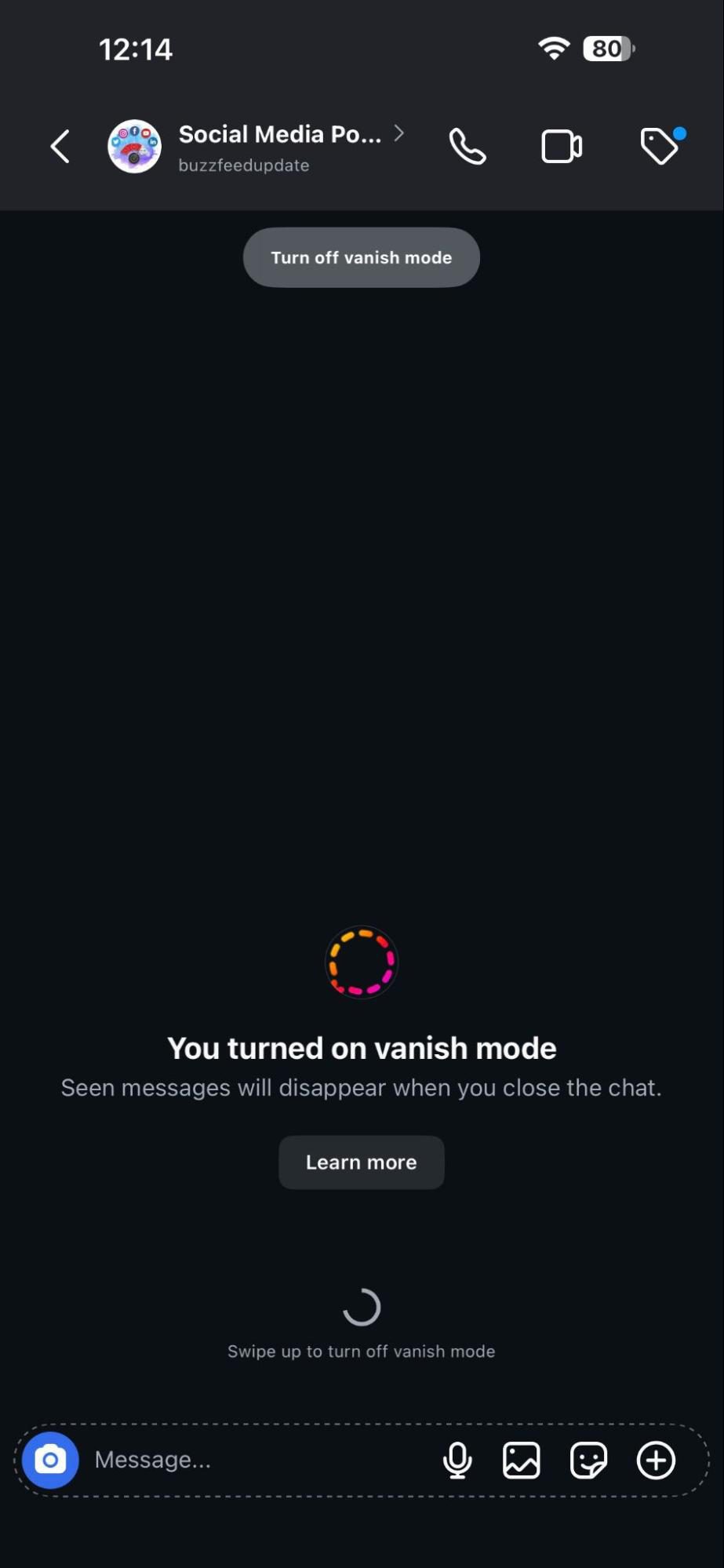
Open the chat where Vanish Mode is active. You’ll usually notice a dark‑background screen or a message indicating Vanish Mode is on. (Beebom)
-
Swipe up from the bottom of the chat screen — press and swipe up, then release. As soon as you see a prompt like “Release to turn off Vanish Mode”, let go. This action toggles Vanish Mode off. (Geek Instructor)
-
Confirm the chat returns to normal — The background will switch back (usually from dark to normal/light), and new messages will remain in chat history, instead of disappearing. (Beebom)
Alternately, in some cases, you may see a button or option at the top of the chat saying “Turn off Vanish Mode”; tapping that also works. (Geek Instructor)
What Happens After You Turn Off Vanish Mode
-
Messages you send after turning off Vanish Mode behave like regular chats — they remain in the chat history unless deleted manually. (Beebom)
-
The messages that were sent while Vanish Mode was active — they disappear permanently when the chat was closed or when you exit Vanish Mode. (How-To Geek)
-
Chat background and interface style returns to normal (no more dark “disappearing messages” style). (How-To Geek)
Troubleshooting: What If Vanish Mode Doesn’t Turn Off?
Sometimes people find that swipe-up doesn’t work, or the chat still shows dark background even after swiping. In that case, try the following fixes:
-
Make sure Instagram app is updated — sometimes outdated version may cause glitches. (Medmint)
-
Restart the app or your phone — close Instagram completely and re-open, then try again. (How-To Geek)
-
Clear app cache (for Android) — this may fix glitches preventing the swipe gesture from registering. (Medmint)
-
If nothing helps, log out and log back in or uninstall & reinstall the app — sometimes a fresh install fixes persistent bugs. (How-To Geek)
Important Things to Know (Limitations & Behavior)
-
Vanish Mode works only in regular one-on-one chats (not group chats). (Medmint)
-
Once messages vanish (because they were sent in Vanish Mode), they cannot be recovered. There’s no “undo” for disappearing messages. (How-To Geek)
-
There’s no global setting to disable Vanish Mode forever. You can only turn it off per chat. (Impact Wealth)
-
Both you and the person you chat with can enable Vanish Mode — so even if you turn it off on your side, other person might accidentally or intentionally re-enable it. (Geek Instructor)
Best Practices & Tips
-
Be careful while swiping up in chats — sometimes you might accidentally trigger Vanish Mode when you simply want to scroll.
-
If you want to avoid Vanish Mode completely, avoid the swipe-up gesture while in chats.
-
Before you exit a chat, double-check that the background is normal (not dark) — especially if you want messages to stay.
-
Keep your Instagram app updated — newer versions tend to have fewer bugs or issues related to messaging features.
Conclusion
Vanish Mode on Instagram can be a helpful tool when you want private, temporary chats that disappear after reading. But often — especially by mistake — people end up with disappearing messages and then regret it.
Thankfully, turning off Vanish Mode is easy: open the relevant chat, swipe up from the bottom, and release when prompted. The chat will return to normal and future messages will stay.
Just remember: you may need to repeat this per chat, and there’s no way to globally disable Vanish Mode for all future conversations.